
2 years
−62%+6 months free
190 ₽per month
5 700 ₽ in total
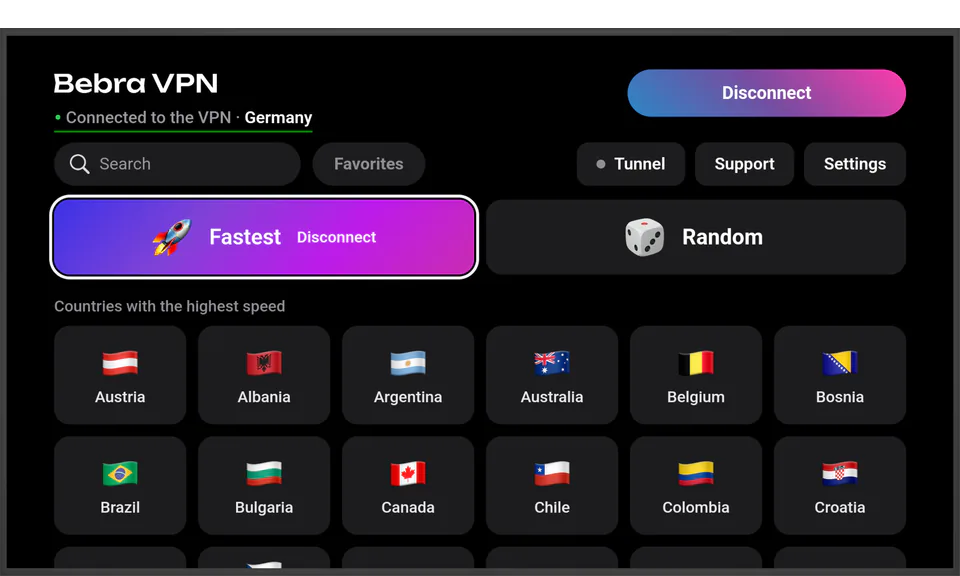
Buy for 5 700 ₽TVs and set-top boxes on Android TV 10 or newer get their own build of Bebra VPN. It installs from an APK, works with the remote, and you approve the sign-in on your phone.
Updated
Open the file link in a browser on the TV, for example in the Downloader app. You won’t need a computer.
Download the file on a computer, copy it to a USB stick and open it on the TV with a file manager such as File Commander.
The first time, the TV asks you to allow installs from this source. Allow it and the install carries on.
The TV shows the code, and you approve it on your phone or on the website. You can’t sign in on the TV with the anonymous account the phone app creates by itself, so link an e-mail first: Account → Link e-mail.
The sign-in screen shows a 9-digit code, with the website address and a QR code next to it. The code changes every 10 minutes.
In the Bebra app on your phone, open Account → Sign in on another device → Sign in on TV, enter the code and tap Approve sign-in. The Sign in on TV button is in the phone app starting with version 1.21.1.
Open the address from the TV screen on your phone or computer, or scan the QR code. Sign in to your Bebra account and click Approve sign-in.
If the TV has an HDMI input, Bebra VPN can live on an Android TV box instead: the box takes the file from this page. You then watch through the box, and the VPN runs there.
To put the whole home online through the VPN, the TV included, install Bebra on your router (Keenetic, OpenWrt, MikroTik). The router needs an account with an e-mail and an active plan. There’s no Bebra VPN app for Samsung’s Tizen or LG’s webOS.
The TV runs on your account’s subscription. If you don’t have one yet, subscribe on the website or in the phone app, then sign in on the TV.
+6 months free
190 ₽per month
5 700 ₽ in total
Buy for 5 700 ₽350 ₽per month
4 200 ₽ in total
Buy for 4 200 ₽500 ₽per month
Buy for 500 ₽
3 days of full access.
Check the code on the TV screen: it changes every 10 minutes. If the phone app asks you to link an e-mail first, tap Account → Link e-mail and enter the code again.
The TV has an old version of the app. Download the new file with the button at the top of the page and install it over the old one.
No, the app installs from a file. The TV or box needs Android TV 10 or newer.
Get it from the Yandex Cloud mirror, linked under the button at the top of the page. It’s the same file.
Better not. The TV has its own build, made to work with the remote, and the button at the top of the page downloads exactly that one.
Fetch the new file the same way you did the first time. Installing it updates Bebra VPN in place, so there’s nothing to uninstall, and your account stays on the TV. The current version number is shown under the button at the top of the page.